

Time to build your everyday lane.
The setup is quick, and the golden rule is the exact opposite of your Business profile.
There you wanted to look professional and easy to find.
Here you want to be as faceless as possible.
Why? Because you will hand this number to strangers, shops and delivery folks.
The less it reveals about you, the better.
How do I add a second number to WhatsApp?
On Android, you can add it as a second account right inside the app.
Go to Settings -> tap your name -> Add account.
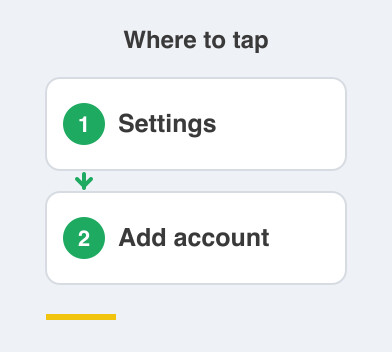
Both numbers then live in the same app and you switch between them.
On iPhone, you run the everyday number through a second SIM or a spare device.
An old phone sitting in a drawer works perfectly well for this.
Then verify with the OTP, one tap, same as always.
What photo and name should I use?
Use a plain profile photo, not your face.
A simple icon, a logo, or leave it blank entirely.
A delivery guy does not need your photo.
For the display name, pick something neutral, because your first name or your initials is plenty.
Skip your full name.
Anyone messaging this line already knows who they are dealing with, since they are the one who asked you for the number.
Should I fill in the rest of the profile?
Leave it all blank.
No status, no About, no personal details of any kind.
This is a buffer, not a personality.
Every field you fill in is one more thing a stranger can learn about you from a number you gave away at a billing counter.
Blank is not rude here, it is simply the correct setting.
Why does being faceless matter so much?
Because a phone number on its own is not very useful to someone with bad intentions.
A phone number attached to your face, your full name and your daily activity is far more useful.
Keeping this profile empty breaks that link.
If the number ever leaks, it leaks as a number and nothing more.
That is the whole design.
You now have a clean, anonymous line ready to soak up all the noise, while your real number and your real identity stay private.
Next comes actually using it, and making this the number you hand out everywhere.
Things to Remember
- On Android, use Settings -> tap your name -> Add account to run a second WhatsApp.
- On iPhone, run the everyday number on a second SIM or a spare device.
- Use a plain photo or none at all, never your face.
- Keep the display name to a first name or initials.
- Leave status and About completely empty.