
The film starts in a language nobody in the room follows.
Four people reach for four different buttons.
Ten minutes later you have somehow turned on Spanish subtitles.
Every app hides these controls in a different place.
Where do I turn subtitles on?
Subtitles are the lines of text showing what is being said.
In almost every app they live behind an icon that appears during playback.
Press right or down on the remote while something is playing.
Look for a speech bubble or a small rectangle.
Some apps call the menu Audio and Subtitles, others just Subtitles or CC.
CC means closed captions.
Those are subtitles that also describe sounds like a doorbell or music.
If you cannot find the icon, pause first.
Many apps only show these controls while paused.
Why did it start playing in a dubbed language?
Apps pick an audio track from your account language, your region, or your last choice.
In India that often means a Hindi or Tamil dub starts on a foreign film.
The fix sits in the same menu as subtitles, under Audio or Audio Track.
Choose Original if you see it.
Original means the language the film was actually made in.
Some titles only have a dubbed track in your region.
No setting can add one that was never supplied.
Can I make the subtitles easier to read?
Yes, and this is the setting people miss most often.
Most apps keep their own subtitle appearance menu inside the app's settings.
There you can change the size, the colour and the background.
Turn on the solid dark band behind the text.
That single change is the biggest improvement for older eyes.
Many televisions also have a setting under Settings -> Accessibility -> Captions.
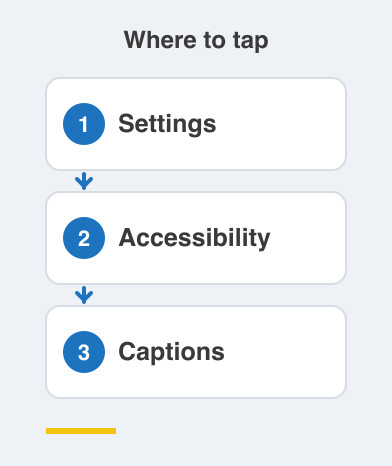
Some apps follow it and several quietly ignore it.
Why will it not remember my choice?
Most apps store the choice against a profile, not against the television.
If the whole family shares one profile, the last person to change it wins.
Some apps remember per show rather than for everything.
That feels random until you know it.
Changing it mid-episode sometimes applies only to that episode.
Set it in the app's account settings while nothing is playing.
It usually sticks better that way.
Things to Remember
- Look for the subtitle icon while playing, or pause the video first.
- Choose Original audio when you do not want a dubbed track.
- Turn on the dark band behind subtitles for easier reading.
- Set language preferences in the app's own settings.
- Give each person a profile so choices stop fighting each other.