Somebody has asked for a scanned copy of a form.
So you flatten it on the dining table and take a photo.
The result is crooked, half in shadow, and clearly a photograph.
Then you go looking for a scanner app.
Most of them want a subscription.
You do not need any of that.
The scanner is already on your phone.
Where is it hiding?
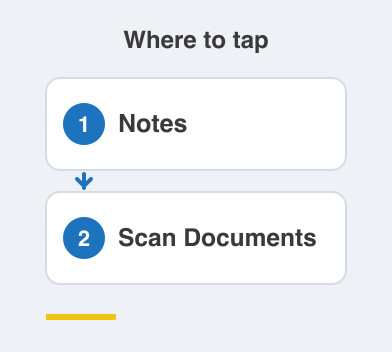
On iPhone, open Notes, tap the camera icon, then choose Scan Documents.
On Android, open Google Drive, tap the plus button, then tap Scan.
That is it, both are already installed on the phone you own.
Neither one asks you to sign up for anything.
How do I get a good scan?
Hold the phone flat over the page.
It finds the edges on its own and takes the shot automatically.
Then it straightens the page and cleans it into a crisp PDF.
If the edges were caught slightly wrong, drag the corners to fix them.
You can sign it right there with your finger, on screen, before you send it.
Then share or save, and you are done.
Two taps, and a form, a bill or an Aadhaar card is a proper document.
Why is this better than a scanner app?
No watermark stamped across the corner.
No "upgrade to premium" message a few scans in.
No new app collecting whatever it collects.
It is free, and it is private.
The document never leaves your phone unless you send it.
That matters more than people think when the paper is an ID card.
The quality is genuinely good too.
It is easily fine for banks, schools and offices.
What makes a scan look professional?
Good light, and not your own shadow.
Stand so the light comes from the side rather than over your shoulder.
Put the page on a plain surface, so the edges are easy to find.
Scan multiple pages into one PDF, not four separate images.
A single tidy PDF is what the office actually wanted.
Try it on the next form that lands in your lap.
You will never photograph a document flat on the table again.
Things to Remember
- iPhone: Notes -> camera icon -> Scan Documents.
- Android: Google Drive -> plus button -> Scan.
- Drag the corners if the automatic edge detection gets it wrong.
- Sign with your finger on screen before you share.
- Combine multiple pages into one PDF, not loose photos.