
Losing your WhatsApp chats feels like losing a diary.
Years of family groups, voice notes from people you miss, photos nobody else has a copy of.
WhatsApp is also the one thing that does not ride along with your Google or Apple account.
It needs its own backup, separate from everything else on the phone.
Once you know your direction, it is simple.
How do I back up before I switch?
Do this on the old phone, while it still works normally.
Open WhatsApp -> Settings -> Chats -> Chat backup -> Back Up Now.
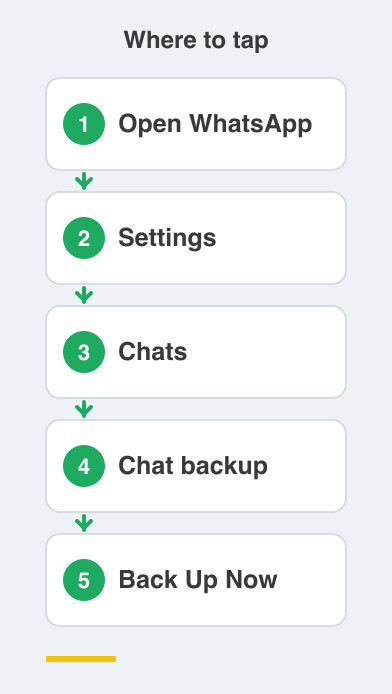
Android saves that backup to Google Drive, and iPhone saves it to iCloud.
It includes your photos, videos and voice notes, so it can be a big one.
Stay on Wi-Fi and let it finish before you go any further.
How do I restore on the new phone?
This depends entirely on what you are switching between.
Android to Android: install WhatsApp, verify the same number, then tap Restore from Google Drive.
iPhone to iPhone: install, verify the same number, then restore from iCloud.
Between Android and iPhone, a backup will not work at all.
For that you use the official move instead.
Android to iPhone goes through Apple's "Move to iOS" app.
iPhone to Android goes through WhatsApp's "Transfer chats to Android".
Both use a cable.
Both run during the new phone's setup.
What is the mistake people make?
They assume a backup is a backup.
A Google Drive backup cannot be restored on an iPhone, and the reverse is equally true.
Changing operating systems means using the transfer tool, not a backup.
The operating system is the software your phone runs on, so Android or iOS.
Because the transfer happens during setup, do not race through those first screens on a new phone.
And whichever route you take, keep the old phone until every chat has appeared on the new one.
Scroll back a few months before you call it done.
Things to Remember
- Back up on the old phone first: WhatsApp -> Settings -> Chats -> Chat backup.
- Use the same phone number on the new phone when you verify.
- Moving between Android and iPhone means the transfer tool with a cable, never a backup.
- Run that transfer during the new phone's setup, not afterwards.
- Keep the old phone until every chat is visible on the new one.