
The school wants a scanned copy of your child's birth certificate by tomorrow morning.
Or the bank wants your PAN card, and there is no scanner anywhere in the house.
Can't I just take a photo?
You can, and it usually comes back looking wrong.
The table under the document shows up in the frame.
The angle is never quite straight, and your own shadow falls across the page.
Worst of all, you end up with a JPEG when they clearly asked for a PDF.

So what is the solution?
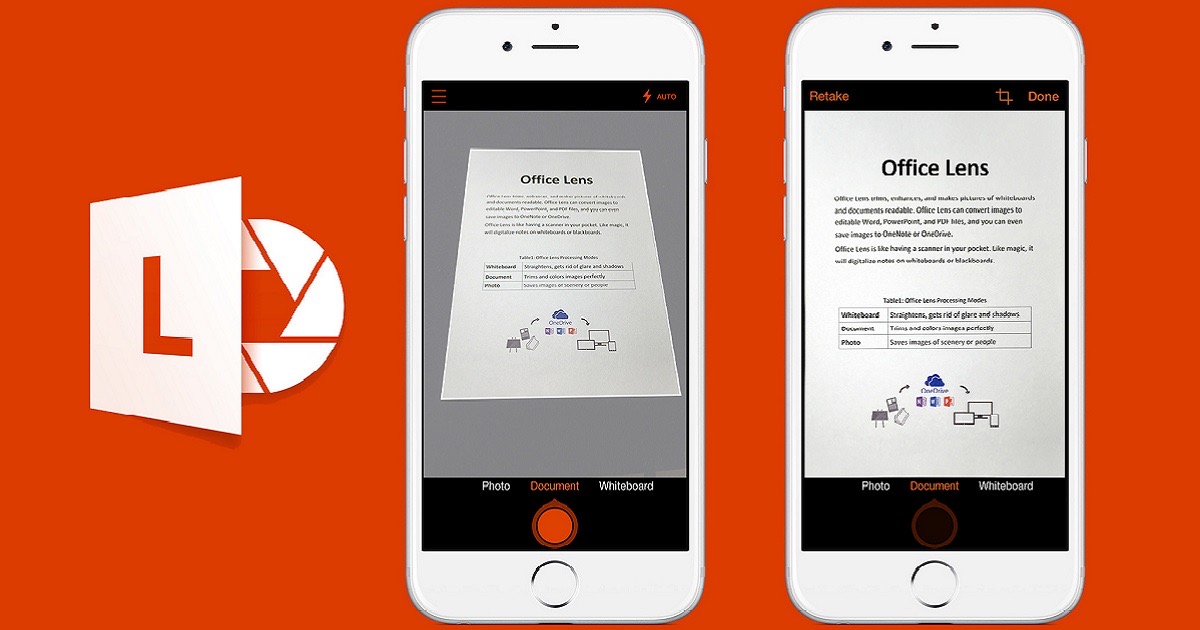
When I first wrote this post, the answer was to install an app called Office Lens.
Microsoft has since folded that app into Microsoft 365, and happily you no longer need it.
Your phone already has a proper document scanner built in.
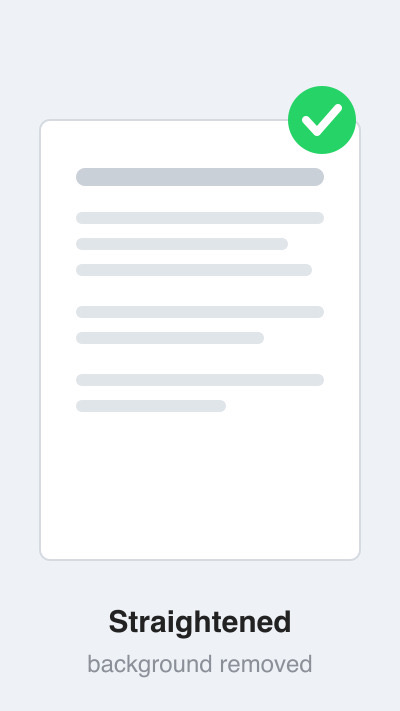
It crops the page, straightens the angle, cleans up the shadow and saves a PDF.
How do I scan on an iPhone?
Open Notes and start a new note.
Tap the attachment button above the keyboard, then choose Scan Documents.
Hold the phone over the page and it captures on its own.
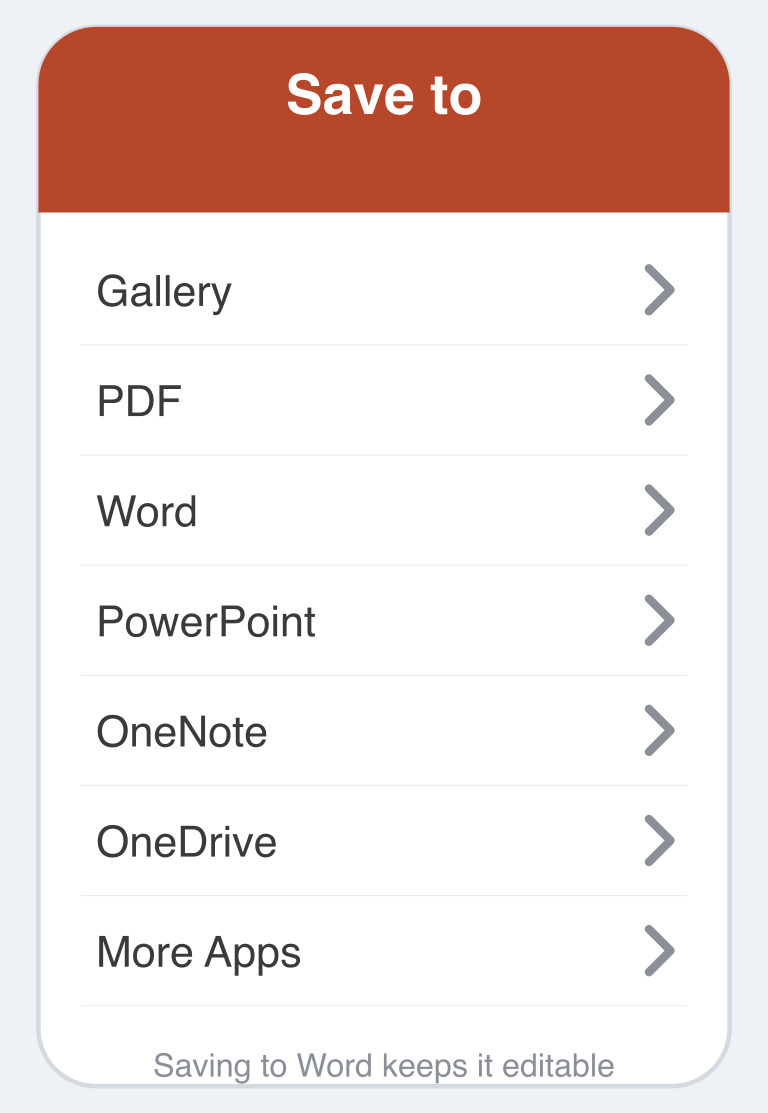
Tap Save, then use the share button to send it as a PDF.
How do I scan on an Android phone?
Open the Google Drive app, tap the + button, then choose Scan.
Point the camera at the page and let it do the work.
The file lands in Drive as a PDF, ready to send on WhatsApp or email.
Many Android phones also have a document mode inside the camera app itself.
Anything else worth knowing?
Keep scanning and every page joins the same PDF, so a ten page agreement stays one neat file.
Your phone also reads the text inside the scan, so you can copy a number straight out of it.
One warning before you go hunting in the app store.
Skip the free scanner apps stuffed with ads.
You do not want your Aadhaar or your bank statement sitting on a server you know nothing about.
Things to Remember
- Use the scanner already built into Notes or Google Drive.
- Place the page on a plain surface in good light.
- Check the crop before you save, especially at the edges.
- Send it as a PDF, never as a photo.
- Keep sensitive documents away from unknown scanner apps.