
The rules are agreed and the phone is charged.
Now comes the technical part, and it is easier than you would think.
About five minutes in the settings locks the phone down so that it is safe out of the box.
You only do this once.
Where do these controls live?
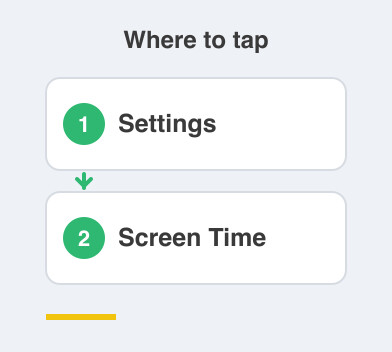
On iPhone, all of it sits under Settings -> Screen Time.
On Android, you set up Google Family Link, which is an app you install on your phone and theirs.
Both do the same job: one place from which you control what the phone can do.
Everything below lives inside whichever one you are using.
What should I switch on?
Six settings, in this order.
- Screen Time or Family Link, set up first, because it is the control centre for everything else.
- Content and age limits, on, which blocks explicit content and age-rated apps.
- Ask before downloads, on, so you approve every app before it installs — this is "Ask to Buy" on iPhone.
- In-app purchases, off, so there are no surprise charges from games, ever.
- Adult websites, blocked, which filters explicit sites in the browser.
- The controls passcode, set to yours, not theirs.
In-app purchases deserve a special mention.
A free game can quietly turn into real charges on your card, and children genuinely do not always realise real money is involved.
Switch it off and the question never comes up.
What is the mistake most parents make?
That last point, the passcode.
If your child knows the Screen Time or Family Link PIN, none of the controls above mean anything.
Every single setting can be undone in seconds, and then quietly switched back on before you look.
So choose a code they cannot guess.
Not their birthday, not yours, and not the same code you use to unlock the phone in front of them.
Keep it to yourself, and share it only with the other parent.
Is that everything?
For the phone itself, yes.
Five minutes, done.
The phone is now safe by default, and you decide what gets added to it from here.
The controls will need revisiting as your child gets older, but you are past the hard part.
Things to Remember
- Set up Screen Time on iPhone or Family Link on Android first.
- Turn on content and age limits, and block adult websites.
- Switch on Ask to Buy so you approve every download.
- Turn in-app purchases off completely.
- Pick a controls passcode your child cannot guess, and never share it.