
You unbox a new iPhone, and it immediately asks you to sign in.
That sign-in is your Apple Account.
Apple used to call it an Apple ID; only the name changed.
What is an Apple Account?
Think of it like your PAN number.
Your bank accounts, investments and tax returns all hang off one PAN.
That is how the Income Tax Department knows you.
Apple works the same way.
Your purchases, photos, messages, backups and subscriptions all hang off one Apple Account.
It can be an email address you already own, such as your Gmail one.
Apple also gives you a free address ending in @icloud.com.
One account per person is enough.
Sharing one with your spouse causes more problems than it solves.
What is iCloud?
iCloud is Apple's cloud storage.
That means space on Apple's computers, which your iPhone reaches over the internet.
Every Apple Account gets 5 GB of it free.
That space holds your iCloud Backup: photos, messages, notes, contacts and app data.
WhatsApp on an iPhone backs up into iCloud too.
That one backup alone can run into many gigabytes.
So on a new iPhone, you sign in and your old phone comes back.
Apps, photos, chats and all.
Why does it keep saying storage is full?
Because 5 GB stopped being enough many years ago.
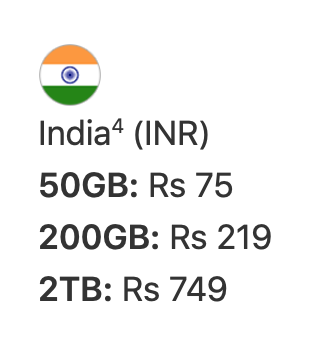
The paid plans are called iCloud+.
They come in 50 GB, 200 GB, 2 TB and a couple of much larger sizes.
You pay monthly in rupees, and your own phone shows today's prices.
Check yours at Settings -> [your name] -> iCloud.
From 200 GB upwards you can share the plan with family.
One payment then covers the whole house.
Is my data safe in there?
It is encrypted, and two-factor authentication guards your account.
That is the code that pops up on your other Apple device.
You can go further with Advanced Data Protection.
It locks your iCloud data so only your own devices can open it.
The catch is real.
Lose your devices and your recovery key, and even Apple cannot help.
Do I need to pay for it?
Yes.
Photos of your parents and your children are not replaceable.
The monthly cost is less than one food delivery order.
Things to Remember
- Use one Apple Account, and set up Family Sharing instead of handing it to relatives.
- Upgrade to iCloud+ before your backups start quietly failing.
- Check your last backup date at Settings -> [your name] -> iCloud -> iCloud Backup.
- Add a Recovery Contact under Settings -> [your name] -> Sign-In & Security.
- Keep your trusted phone number current, because that is where sign-in codes go.