
You pick up your phone to reply to one message.
Forty minutes later you are watching a video of a man restoring an old chair.
The message is still unsent.
We have all done this, and none of us planned to.
Luckily, the same phone has very good tools to stop it.
Why does this keep happening?
Two reasons, and both are fixable.
Your phone beeps every few minutes, and every app is one tap away.
Fix the beeping first, because that is what starts the loop.
How do I go quiet without missing an emergency?
On an iPhone, Do Not Disturb now lives inside Settings -> Focus.
It sits there with the other modes, like Sleep, Work and Personal.
On Android, open Settings -> Notifications -> Do Not Disturb.
Samsung, Xiaomi and OnePlus each name that screen slightly differently.
Then set the three options that make it safe to leave on:
- Allow calls from Favourites, so add your family and your doctor to that list.
- Allow repeated calls, so a genuine emergency will still ring through.
- Set a schedule for the hours you already know you need quiet.
Where is my time actually going?
On an iPhone, go to Settings -> Screen Time.
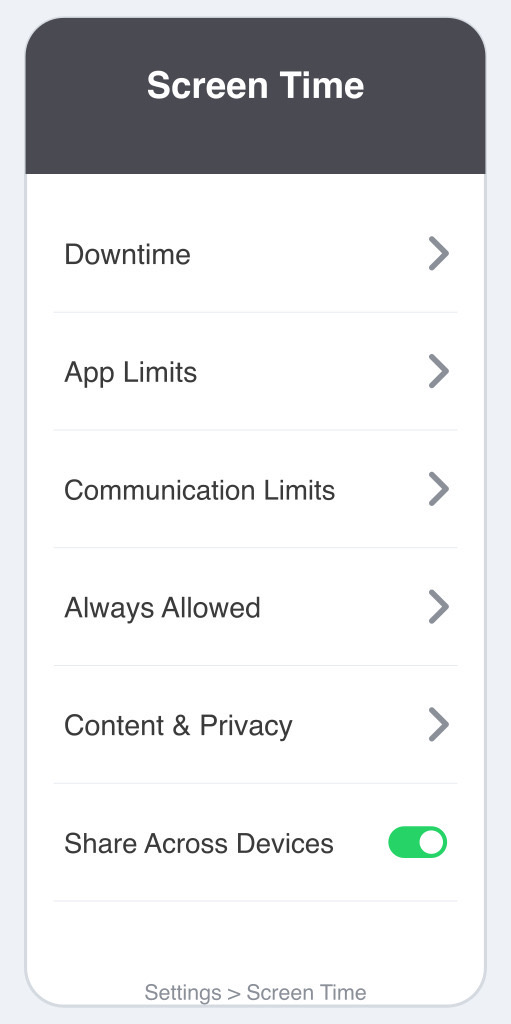
On Android, go to Settings -> Digital Wellbeing and parental controls.
Android has had this built in for years.
You do not need a third-party app for it any more.
Both screens show you the same three numbers.
Time spent in each app, pick-ups, and notifications received.
Pick-ups means how many times you lifted the phone out of standby.
Set your screen to lock after a minute or two, so the figures stay honest.
Expect a shock.
Can I make my phone actually stop me?
Yes, and this is the part that really works.
Set an App Limit on the iPhone, or an app timer on Android.
Give WhatsApp 45 minutes a day.
The app simply greys out when the time is up.
At night, switch on Downtime on the iPhone, or Bedtime mode on Android.
Which apps should lose the right to beep?
Open your notifications list and read it top to bottom.
Turn off anything that is not a human being.
Shopping apps, food delivery, news alerts and games do not need your attention.
The iPhone also has a Scheduled Summary.
It holds the unimportant ones back and delivers them twice a day.
Things to Remember
- Set Do Not Disturb once, with Favourites and repeated calls allowed.
- Set your screen to lock after a minute or two, so your usage figures are honest.
- Put an app limit on the one app you know is the problem.
- Turn off notifications for every app that is not a person.
- Check your numbers again after a week, and enjoy the drop.