
You are in eleven groups, and nine of them are talking right now.
Good morning flowers, the same reel forwarded four times, a fifty megabyte wedding video from someone you met once.
None of it is your fault, and all of it is sitting on your phone.
Let us take the space back.
Why is WhatsApp eating all my storage?
Because everything sent to you downloads automatically.
Nobody ever told it to stop.
A single group can now hold more than a thousand people.
So one forward quietly becomes hundreds of copies across your chats.
How do I stop media downloading on its own?
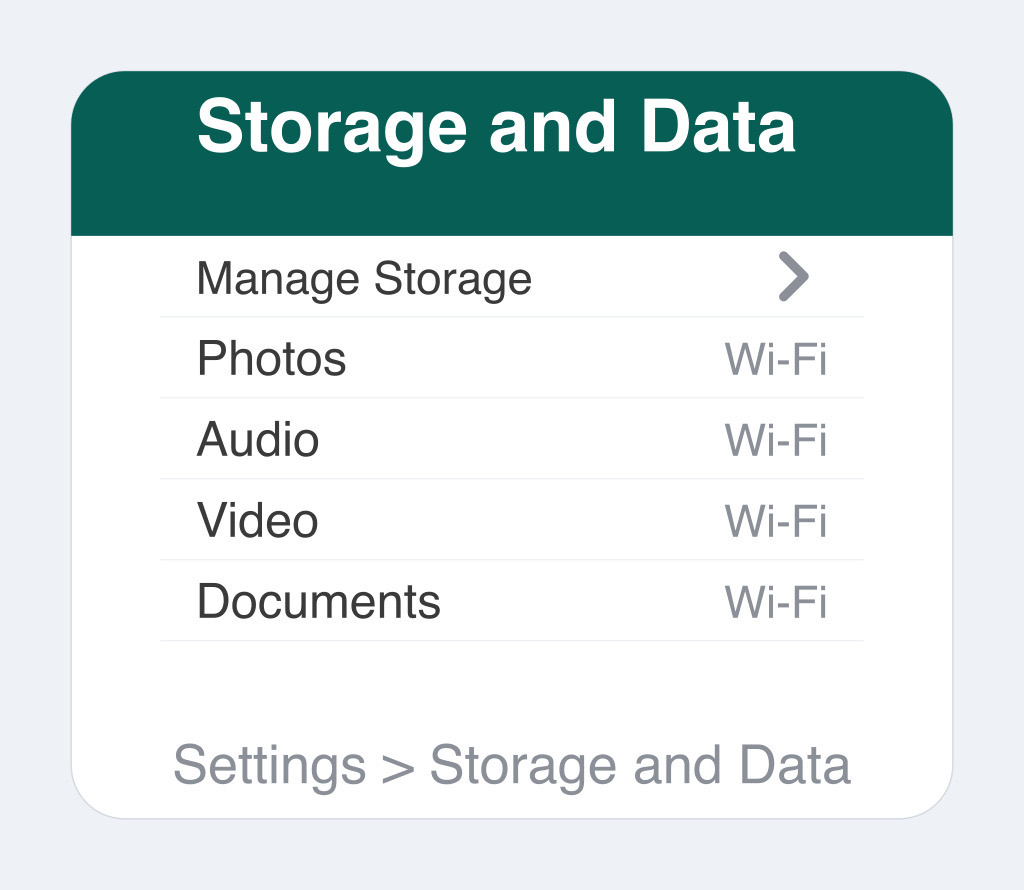
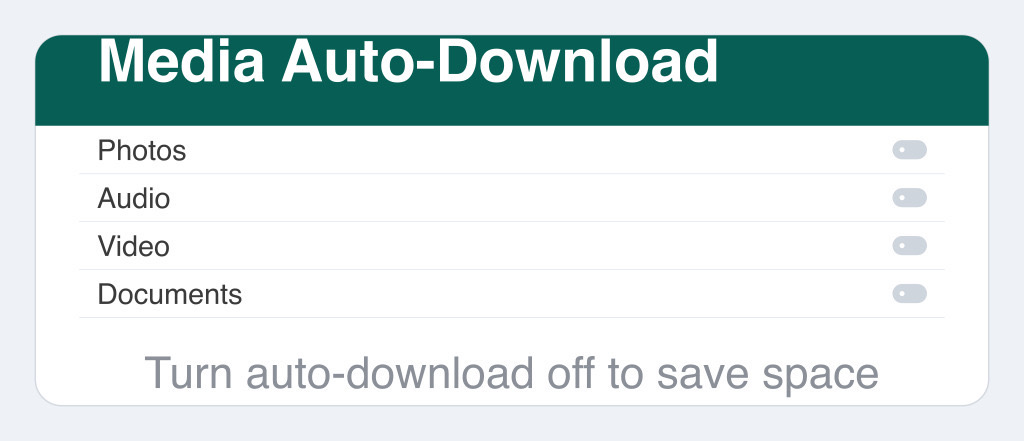
Go to Settings -> Storage and data -> Media auto-download.
You will now see three separate settings: mobile data, Wi-Fi, and roaming.
Turn videos and documents off in all three.
Do the same for photos and audio on mobile data.
Nothing is lost by doing this.
Tap any photo or video you actually want, and it downloads in a second.
Where do I delete what is already there?
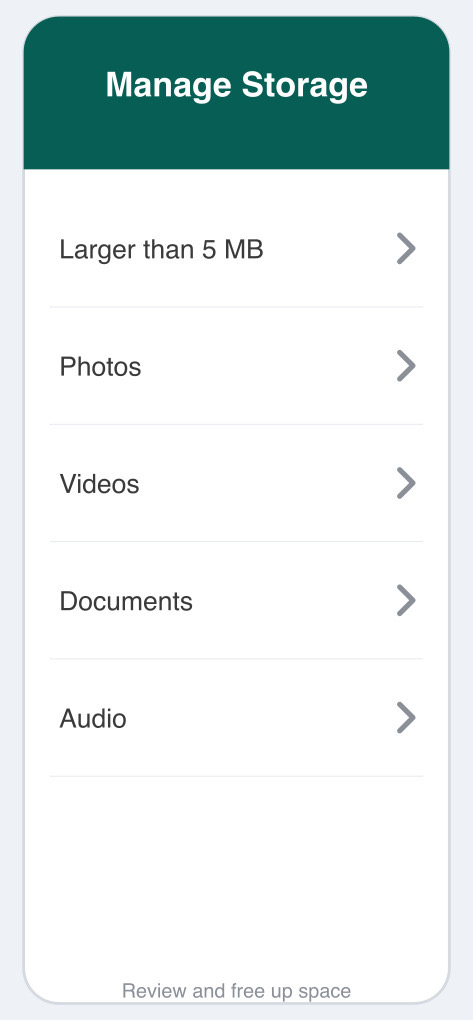
Go to Settings -> Storage and data -> Manage storage.
The top of that screen shows you two piles.
One is media larger than 5 MB, the other is media forwarded many times.
That second pile is where the Good Morning pictures live.
Select what you don't want and delete it.
It does not matter which chat it came from.
Below that, your chats are listed biggest first.
Now you can see exactly who is filling your phone.
How do I stop the mess coming back?
Open Settings -> Chats.
Turn off Save to Photos on an iPhone, or Media visibility on Android.
WhatsApp then stops copying every received picture into your gallery.
Next, open Settings -> Privacy -> Default message timer.
Pick 24 hours, 7 days or 90 days.
New chats will now clear themselves out.
What about the groups I cannot leave?
You know the ones.
Open the group, tap its name, and mute it for Always.
Then archive the chat, and switch on Keep chats archived in Settings -> Chats.
It stays out of sight even when it lights up.
Things to Remember
- Set media auto-download to nothing on mobile data and roaming.
- Clear out Forwarded many times first for the quickest win.
- Turn off Save to Photos so your gallery stays yours.
- Use the default message timer so old chats clean themselves.
- Keep WhatsApp small, because your backup now counts against your free Google Drive or iCloud space.