
We've all been using WhatsApp for many years now.
Some of us have chats that are ten years old and would be heartbreaking to lose.
A lost phone, a stolen phone, one failed update, and they are gone.
The good news is that WhatsApp will do the work for you, once you set it up.
Clean up your chats first, because a smaller backup is a faster backup.
Where is the backup setting?
Go to Settings -> Chats -> Chat Backup.
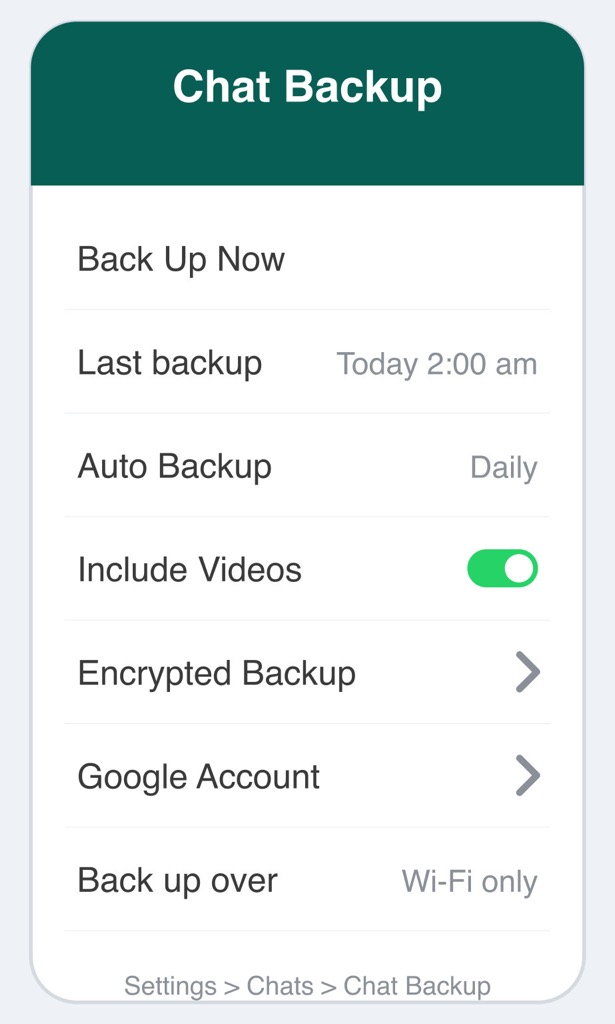
The first thing you see is the date of your last backup.
Ideally it says today or yesterday.
If it says Never, WhatsApp has never backed up, and it is time to fix that.
Which settings actually matter?
Set Auto Backup to Daily.
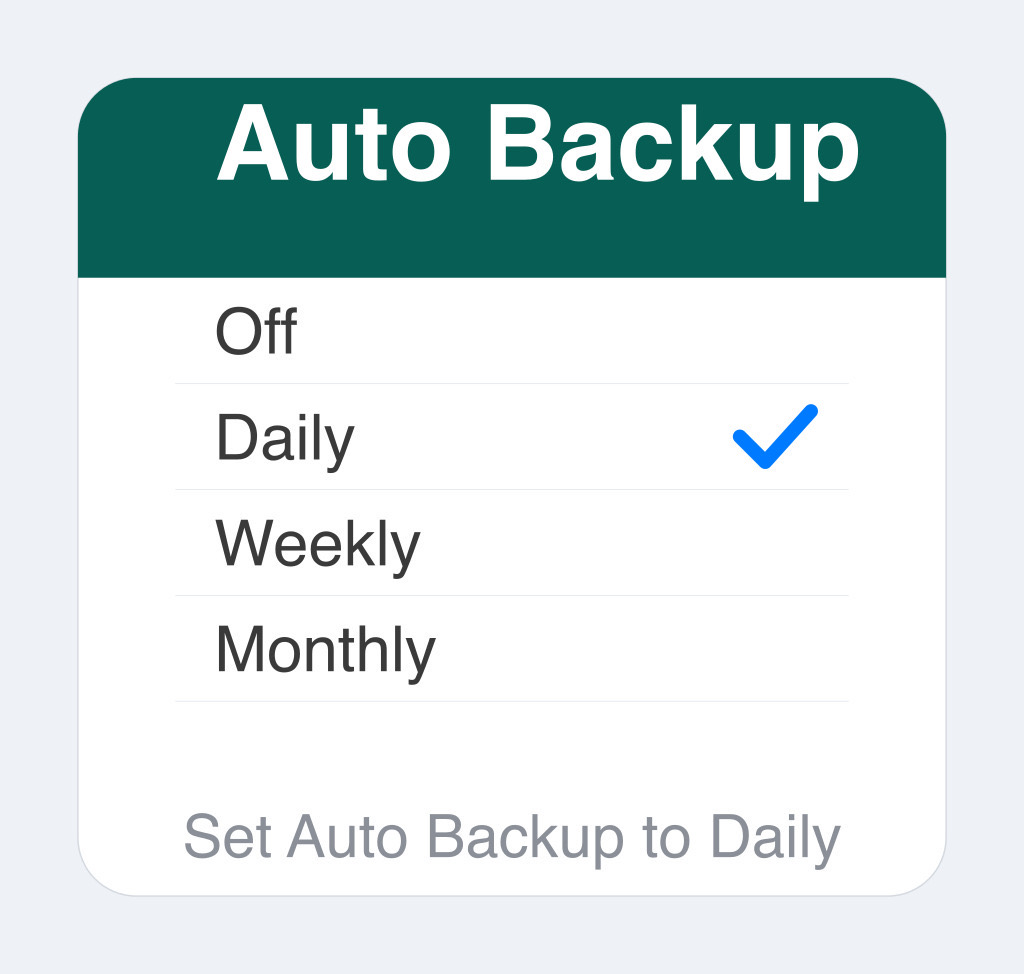
Your phone then backs itself up overnight, on Wi-Fi, while it charges.
Videos are what make a backup enormous, so turn on Include Videos only if you genuinely want them.
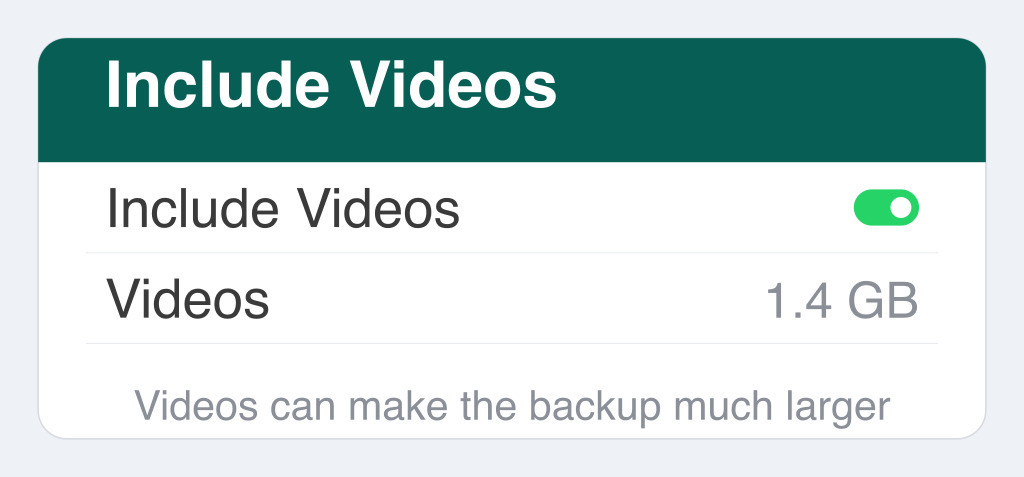
Tap Back Up Now to start it off.

Be patient: anywhere from ten minutes to two hours, depending on the size and your internet speed.
Should I encrypt my backup?
This option is new since I first wrote this post.
Switch on end-to-end encrypted backup and your backup is locked with a password or a 64-digit key that only you hold.
Not even WhatsApp can open it.
The catch is real: lose that password and the backup is gone forever.
Use it if you will store that password somewhere safe.
Why does my backup keep failing?
Almost always because you have run out of space.
WhatsApp backups used to sit free in Google Drive, and that has stopped.
On Android your backup now eats into the same 15 GB you share with Gmail and Photos.
On iPhone it has always counted against iCloud, where you get 5 GB free.
Check the phone itself too, under Settings -> General -> iPhone Storage.
What about moving to a new phone?
You no longer need a backup just to change phones.
WhatsApp can move your chats straight from the old phone to the new one, even from Android to iPhone.
Keep both phones charged and side by side.
Things to Remember
- Clean up WhatsApp before you back up, never after.
- Set Auto Backup to Daily and then leave it alone.
- Back up on Wi-Fi with the charger plugged in.
- Keep two to three times the backup size free in Drive or iCloud.
- If you turn on encryption, store that password where you will genuinely find it again.