
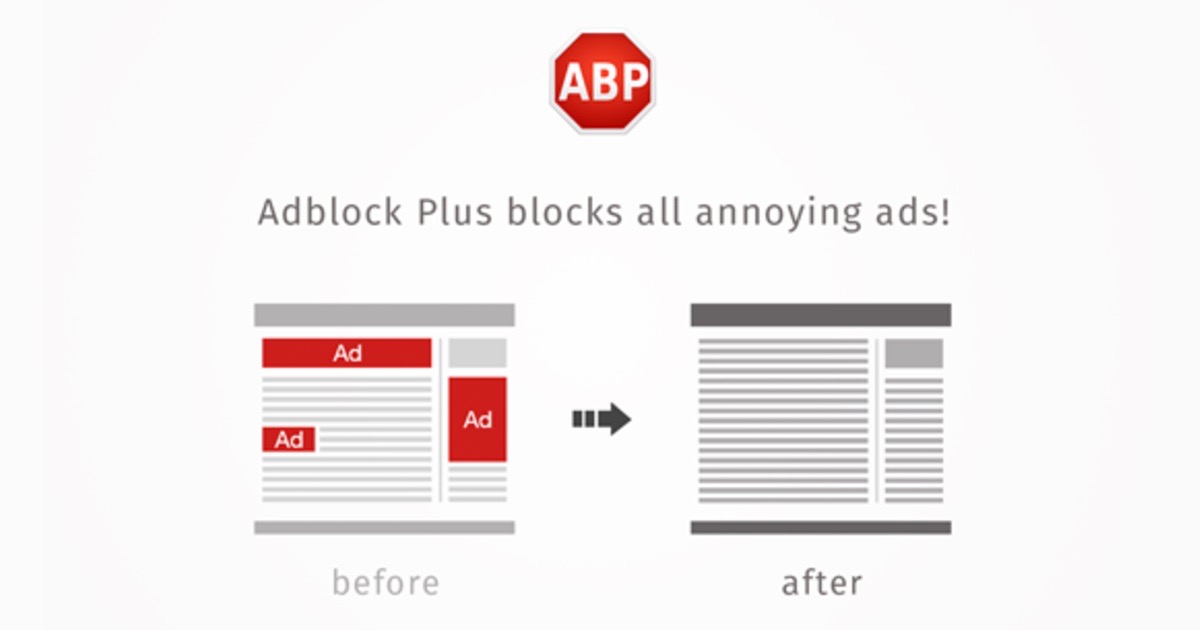
You open a news site to read one article.
A banner covers the top and a video starts playing on its own.
Then a box slides up asking for your email.
Why should I care about a few ads?
Because they cost you more than patience.
Every banner and auto-playing video quietly eats your data.
That stings on a Jio or Airtel pack with a fixed daily limit.
Ads are also one of the easiest ways for harmful software to reach you.
Anybody can buy an ad, so that flashing "your phone is infected" box on an unfamiliar site is bait.
The trade has a name: malvertising, meaning an advert used to deliver malware.
What do I install on my computer?
An ad blocker is a small add-on for your browser, called an extension.
It stops ads loading before the page even appears.
The advice here has changed since I first wrote this post, so ignore the old lists.
Chrome rewrote the rules for extensions, and several long-standing blockers now work in a weaker form there.
On Firefox, install uBlock Origin, which is free and still the most capable of the lot.
On Chrome or Edge, install uBlock Origin Lite.
On a Mac, Safari takes content blockers from the App Store such as AdGuard or Wipr.

What about my phone?
On an iPhone, install a content blocker from the App Store.
Then switch it on under Settings -> Safari -> Extensions.
On Android, Chrome does not accept these add-ons at all.
Install Firefox from the Play Store and add uBlock Origin to it.
Or use Brave, which blocks ads on its own with nothing to set up.

What about ads inside apps?
A browser extension cannot touch those, because they never pass through your browser.
For those you change your DNS, which is the phone book your device uses to look up websites.
Point it at a filtering service like AdGuard DNS or NextDNS.
Ads are then blocked before they load, everywhere on that device.
On Android this lives under Private DNS in your network settings.
On an iPhone, the service gives you a profile to install.
One warning worth taking seriously.
Do not install random free ad blocker apps that demand VPN or accessibility permission.
Some of them simply resell your browsing.
Things to Remember
- Use uBlock Origin on Firefox, on both computer and Android.
- On an iPhone, use a Safari content blocker from the App Store.
- Skip any blocker app that asks for VPN or accessibility access.
- Change your DNS if in-app ads bother you.
- Never tap an ad that warns you your device is infected.